
You can listen to podcasts in a browser right now, no app required. Open Gopcast or another web-based podcast player, find a show, and press play. That’s the whole process.
Two quick caveats worth knowing upfront:
- Some episodes won’t play in a browser if the publisher’s hosting server blocks cross-origin requests (more on that below).
- Features like offline downloads, CarPlay, and sleep timers still require a mobile app.
For everything else, a web player handles it cleanly.
Table of Contents
- How do you listen to podcasts in a browser?
- What features do browser podcast players actually offer?
- When is the browser the right choice, and when should you use an app?
- How do browser players find and stream episodes?
- Gopcast: the recommended browser player for conservative listeners
- Browser compatibility, privacy, and accessibility
- Key Takeaways
- The case for keeping a browser tab open
- Gopcast brings conservative podcasts to your browser, instantly
- Sources and further reading
How do you listen to podcasts in a browser?
Follow these steps on desktop or mobile:
- Open a web player. Go to Gopcast for curated conservative programming, or use another podcast streaming site if you want a broader general catalog.
- Find your show. Use the site’s search bar, browse by category, or paste a show’s RSS feed URL directly into the player’s search field.
- Open the episode list. Click the show title to see available episodes, descriptions, and artwork.
- Press play. The audio streams directly from the publisher’s feed through your browser’s built-in HTML5 audio engine.
- Adjust playback. Use the speed control (most players offer 0.5x to 3x), seek bar, and skip buttons right in the player.
- Save your place. If the player supports subscriptions, add the show to your list. Some web players, like Shuttle, also let you export subscriptions as an OPML file to import into a full mobile app later without re-adding each show manually.
Pro Tip: Press the spacebar to play or pause in most desktop browsers. Left and right arrow keys seek backward and forward. To keep audio running while you switch tabs, make sure your browser hasn’t muted the tab — right-click the tab and check the audio icon.
What features do browser podcast players actually offer?
More than most people expect. The gap between a web player and a mobile app has narrowed considerably.
Core controls you’ll find on any decent web player:
- Play, pause, seek, and volume
- Variable playback speed (typically 0.5x to 3x)
- Skip forward and back (usually 15 or 30 seconds)
- Episode list with show artwork and descriptions
- Search across a catalog or by RSS feed
Advanced features some players support:
- Chapter markers and transcripts, which turn long-form journalism into something you can actually navigate. The Podlove Web Player exposes both, creating an interactive in-page listening experience.
- HLS support for live audio streams, also documented in Podlove’s player.
- A sticky mini player that stays visible as you scroll or browse other pages on the same site.
- OPML export so your browser-based subscription list travels with you.
What web players rarely offer:
Background downloads and robust offline storage are the two features browsers genuinely can’t replicate well. Mobile operating systems give apps dedicated background-process access that browsers don’t get. That’s the real ceiling for web-based listening, not playback quality or feature depth.

Web players are also a low-friction discovery channel. You can sample a show without creating an account, which makes them especially useful for finding niche or investigative content you wouldn’t have searched for in an app store.
When is the browser the right choice, and when should you use an app?
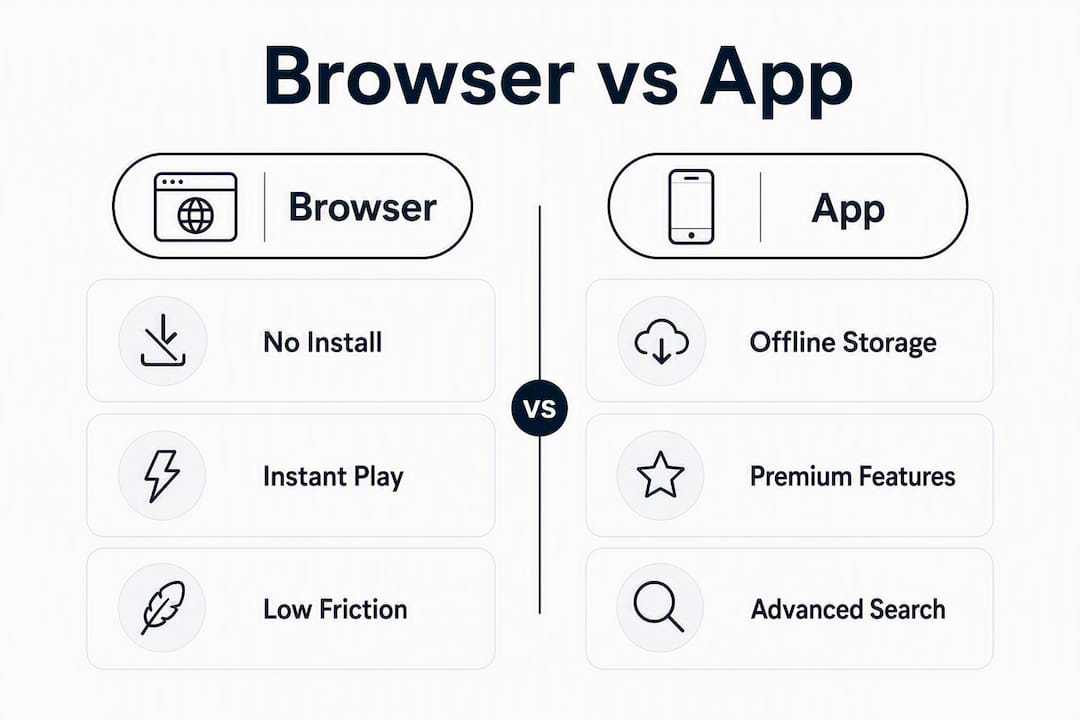
The honest answer: the browser wins for casual and situational listening; the app wins for daily, heavy use.
Browser listening fits these scenarios well:
- Quick sampling of a new show before committing to a subscription
- Listening on a work, school, or shared machine where you can’t install apps
- Privacy-conscious one-off listens where you’d rather not log in anywhere
- Desktop listening while working, where a sticky player in a tab is genuinely convenient
A mobile app is the better call when:
- You commute and need reliable offline playback
- You want CarPlay or Android Auto integration
- Cross-device sync matters (picking up mid-episode on your phone after starting on a laptop)
- You rely on a sleep timer or advanced queue management
| Use case | Best format | Key reason |
|---|---|---|
| Sampling a new show | Browser | No sign-up, instant play |
| Daily commute | Mobile app | Offline downloads, CarPlay |
| Office/desk listening | Browser | Sticky tab player, no install |
| Long-form library management | Mobile app | Sync, queue, sleep timer |
| Shared or restricted device | Browser | No install, no account needed |
| Live audio streams | Browser (if supported) | HLS web player handles it |
Premium features like AI summaries, advanced search, and synthesis radio tend to stay locked behind app-based tiers, while core browser playback stays free. That’s a deliberate product decision by most platforms, not a technical limitation.
How do browser players find and stream episodes?
Every web player follows the same basic model. It fetches a show’s public RSS feed, reads the metadata (title, artwork, episode list, audio file URLs), and streams the audio enclosure directly through the browser’s HTML5 audio element. Public RSS feeds give players access to millions of shows without any proprietary walled garden, which is why you can paste almost any podcast’s feed URL into a web player and have it work immediately.

Why some shows don’t play comes down to one thing: CORS. Cross-Origin Resource Sharing rules let a server restrict which domains can request its audio files. If a publisher’s hosting provider has set restrictive CORS headers, the browser will block the audio request and the player will show an error. This isn’t the player failing; it’s the server saying no.
Troubleshooting checklist when an episode won’t play:
- Try a different browser (Chrome, Firefox, Edge, and Safari all handle CORS slightly differently)
- Open your browser’s developer console (F12) and look for a CORS error on the network tab
- Paste the show’s RSS feed URL into a different web player to see if the issue is player-specific
- If the show has a dedicated mobile app, that’s the reliable fallback since apps often bypass browser CORS restrictions through direct API access
Gopcast: the recommended browser player for conservative listeners
For conservative political programming, Gopcast is the direct answer. It aggregates curated shows, including The Dan Bongino Show, Bannon’s War Room, and the Brian Kilmeade Show, into a single web player you can access from any desktop browser without creating an account.
What Gopcast offers in the browser:
- Immediate streaming of curated conservative shows via HTML5 audio
- Category browsing across news, commentary, interviews, activism, health, comedy, and investigative content
- Individual show pages with episode lists, artwork, and descriptions
- A persistent player with core transport controls (play, pause, seek, speed)
- Search across the catalog to find specific hosts or topics
Short walkthrough:
- Go to gopcast.com.
- Use the search bar or browse category pages to find a show.
- Open the show page and select an episode.
- Click play. Audio starts immediately in your browser.
The catalog is U.S.-focused and built around conservative news podcasts, so you’re not sorting through thousands of unrelated shows to find the voices you actually want. Gopcast pulls from public RSS feeds and streams through standard HTML5 audio, which means it works in every major modern browser without plugins.
Pro Tip: If you’re new to the catalog, the best conservative podcasts editorial list is a fast way to find shows worth following before you commit to a mobile app subscription.
Browser compatibility, privacy, and accessibility
Browser support: Web players built on HTML5 audio work across Chrome, Firefox, Edge, and Safari on both desktop and mobile. The most common gotcha on mobile is autoplay restrictions. iOS Safari and Android Chrome both require a user gesture (a tap) before audio starts, so don’t expect a podcast to begin playing automatically when you land on a page.
Privacy tips for browser listening:
- Use a private or incognito window for one-off listens on shared machines. The player won’t write to your browser’s local storage in that session.
- Avoid signing into any player account on a shared device.
- Clear local storage in your browser settings if a player has saved a subscription list you want to remove.
- Web players that stream directly from RSS feeds don’t require account creation for basic playback, which limits the data trail significantly.
Accessibility features to look for:
- Chapter markers (supported by players like Podlove) let you jump to specific segments in long episodes
- Transcripts make content accessible to deaf or hard-of-hearing listeners and are searchable in-page
- Keyboard controls (spacebar, arrow keys) reduce reliance on mouse precision
- Adjustable playback speed benefits listeners with auditory processing differences
Pro Tip: On mobile browsers, keep the screen active or use your phone’s “picture-in-picture” or browser audio controls in the notification shade to maintain playback when you switch apps. Background audio in mobile browsers is less reliable than in dedicated apps.
Key Takeaways
Listening to podcasts in a browser requires no install and no account for basic playback; open a web player, find a show, and press play.
| Point | Details |
|---|---|
| Fastest start | Open Gopcast or another web player, search for a show, and press play with no install. |
| Core features available | Browser players offer speed control, seek, skip, chapters, and transcripts on modern players. |
| When to use an app | Choose a mobile app for offline downloads, CarPlay, cross-device sync, or sleep timers. |
| CORS troubleshooting | If an episode won’t play, check the browser console for a CORS error and try a different browser. |
| Gopcast for conservative listeners | Gopcast streams curated conservative shows in any desktop browser with no sign-up required. |
The case for keeping a browser tab open
The conventional wisdom in podcasting is that apps are the serious listener’s tool and browser players are a stopgap. That framing is outdated. For desk-based listening, a sticky browser tab with a web player running is genuinely more convenient than picking up your phone, unlocking it, and navigating an app. The friction difference is real, and it favors the browser.
Where the app-first crowd has a point is daily commuting and offline use. Those scenarios have a hard technical ceiling in browsers that no amount of HTML5 improvement fully solves. But for the majority of listening that happens at a desk, the browser is the right tool, not a compromise.
For Gopcast’s audience specifically, the browser player removes one more barrier between a listener and the shows they care about. No download, no account, no algorithm deciding what you see first. You open the site, you find the show, you listen.
Gopcast brings conservative podcasts to your browser, instantly
Conservative talk radio moved to podcasting, and Gopcast moved it to the browser. The catalog covers the shows that matter to right-leaning listeners, from The Dan Bongino Show to Louder with Crowder to Stinchfield Tonight, all playable from a single site with no app install and no account required for basic listening.
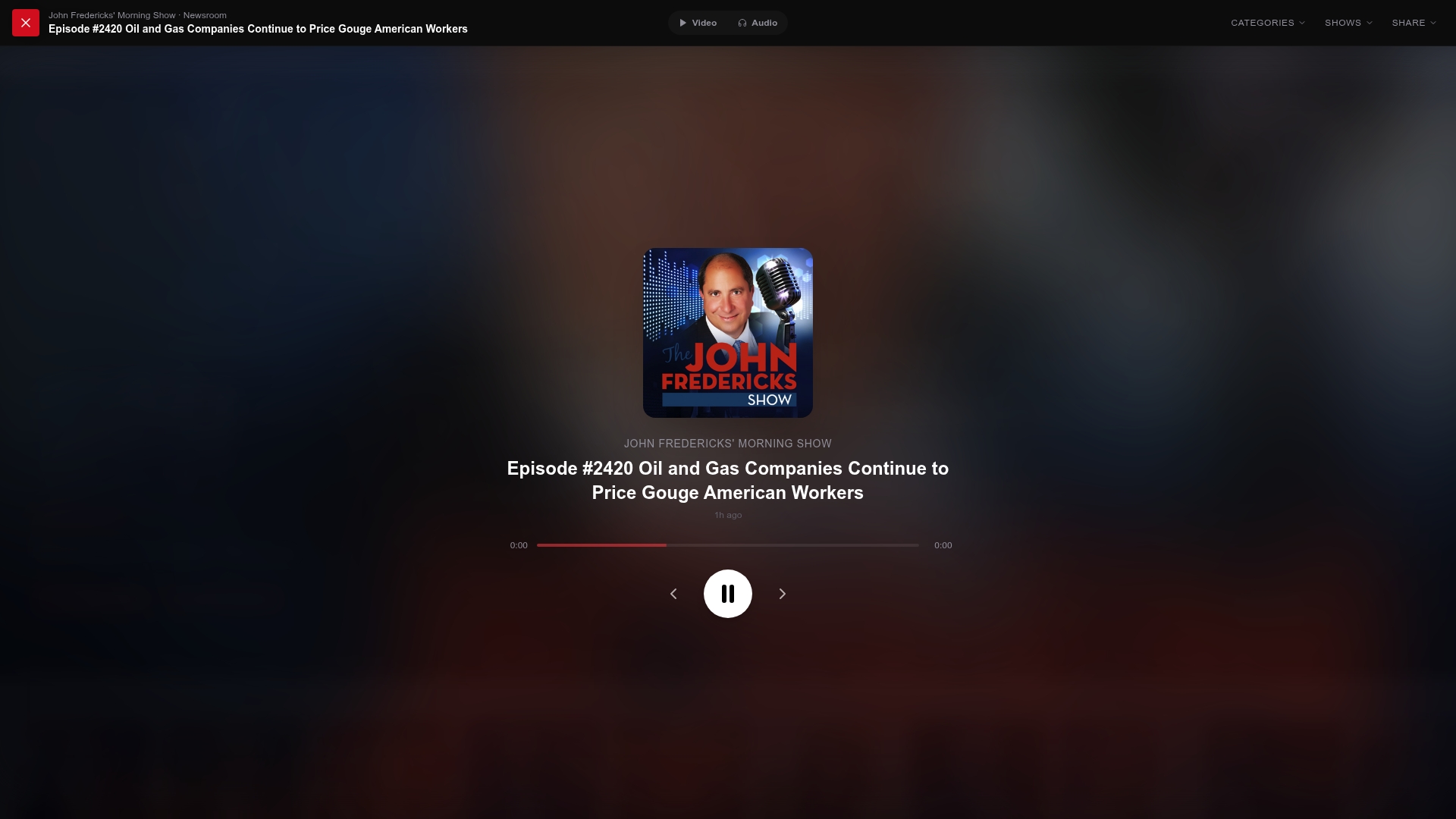
The pitch is simple: stop hunting across three different apps for the shows you follow. Gopcast puts them in one place, accessible from any browser, with a clean player that gets out of the way. If an episode won’t play due to publisher restrictions, the show page will point you toward the app or the publisher’s direct feed.
Start listening at Gopcast now, or go straight to a show like America’s Voice Live to hear what the player feels like before you explore the full catalog.
Sources and further reading
The technical claims in this article draw from the following documentation and reference pages. Each is worth bookmarking if you want to go deeper on web player architecture, embedding, or accessibility.
| Source | What it covers |
|---|---|
| Podlove Web Player documentation | HTML5 player with chapter markers, transcripts, HLS live support, and WordPress/static embed options |
| Podlove on GitHub | Source code and technical specs for the VueJS-based player; useful for developers embedding a player |
| Shuttle Podcasts web player | RSS-based browser player with OPML export; explains the feed-based discovery model |
| The Podcast App web player (TPA) | Documents browser vs. app feature tradeoffs, CORS behavior, and premium feature gating |
| podcasting2.org | Podcast Index and Podcasting namespace standards; authoritative reference for RSS feed specs |
| GetPodcast | Free browser-based podcast directory demonstrating cross-platform web listening |